Browse and search
Your Home page is where you find music to add to your venue. It's organised into rows by category, with a search bar across the top for when you know what you're after.
By the end you'll know:
- How to browse playlists by category
- How to search — and what the results are grouped by
- The little things that keep a demo or a browse session tidy
Browsing playlists on Home, opening one to preview it, then searching — with live suggestions on focus.
Chapters: 0:00 My Soundscape · 0:07 Browse Home · 0:39 Playlist Preview · 1:00 Search
Open Home
Once you're signed in, click Home in the navigation (on mobile it's in the bottom tab bar). The page opens at play.finetunes.app/home.
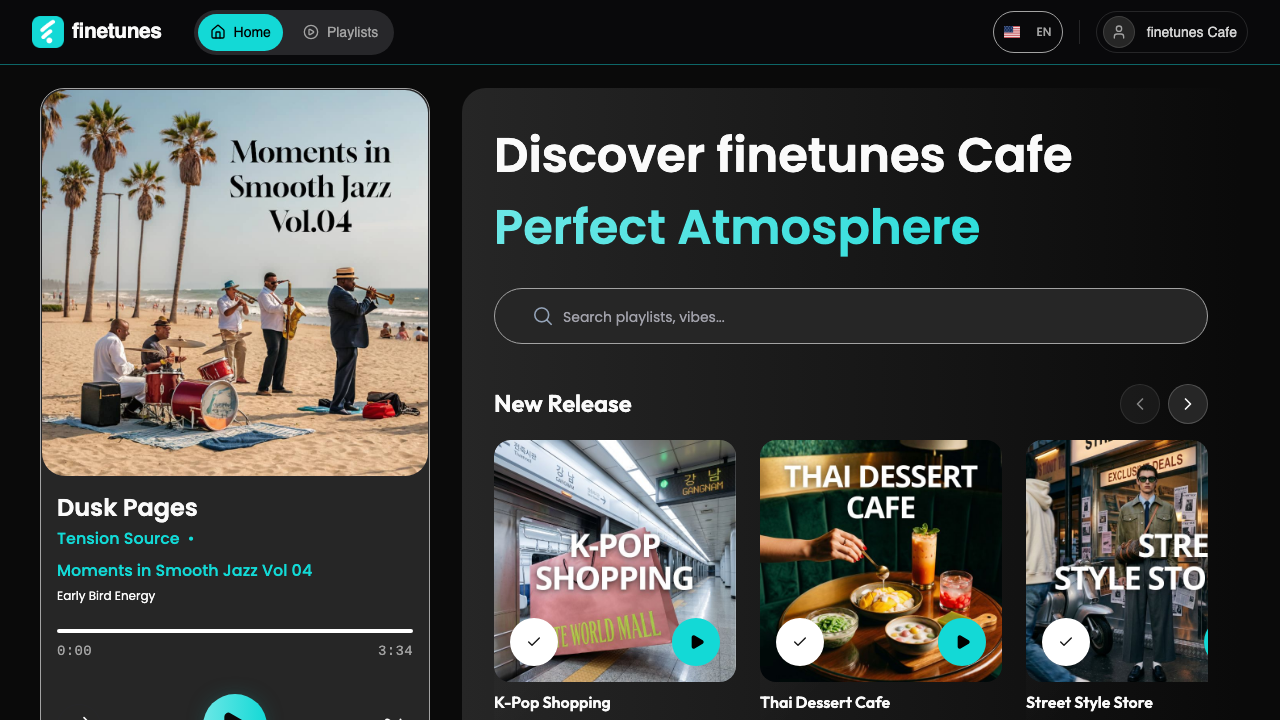 The Home page: a venue-named hero, the search bar, and category rows of playlists.
The hero greets you with your venue's name — Discover <your venue> — pulled from your playpoint. Below it, the search bar, then one horizontal row per category of playlists.
Browse by category
Each row is a category (a "tag") with playlists that have music in them. To move through a row:
- On desktop, use the left / right chevrons at the ends of the row. They grey out when you reach the end.
- On mobile, swipe the row; a slim progress bar under the row shows how far along you are.
Click any playlist card to open it and see its tracks — from there you can add it to your queue.
Within each row, playlists past the first ten are shuffled on each visit, so the order changes between page loads. The first ten are stable — handy to know if you're comparing or filming.
If you don't have any playlists yet, Home shows an empty state prompting you to add your first — that's what search and the category rows are for.
Search for music
The search bar lives at the top of Home. Click it and a panel opens before you even type.
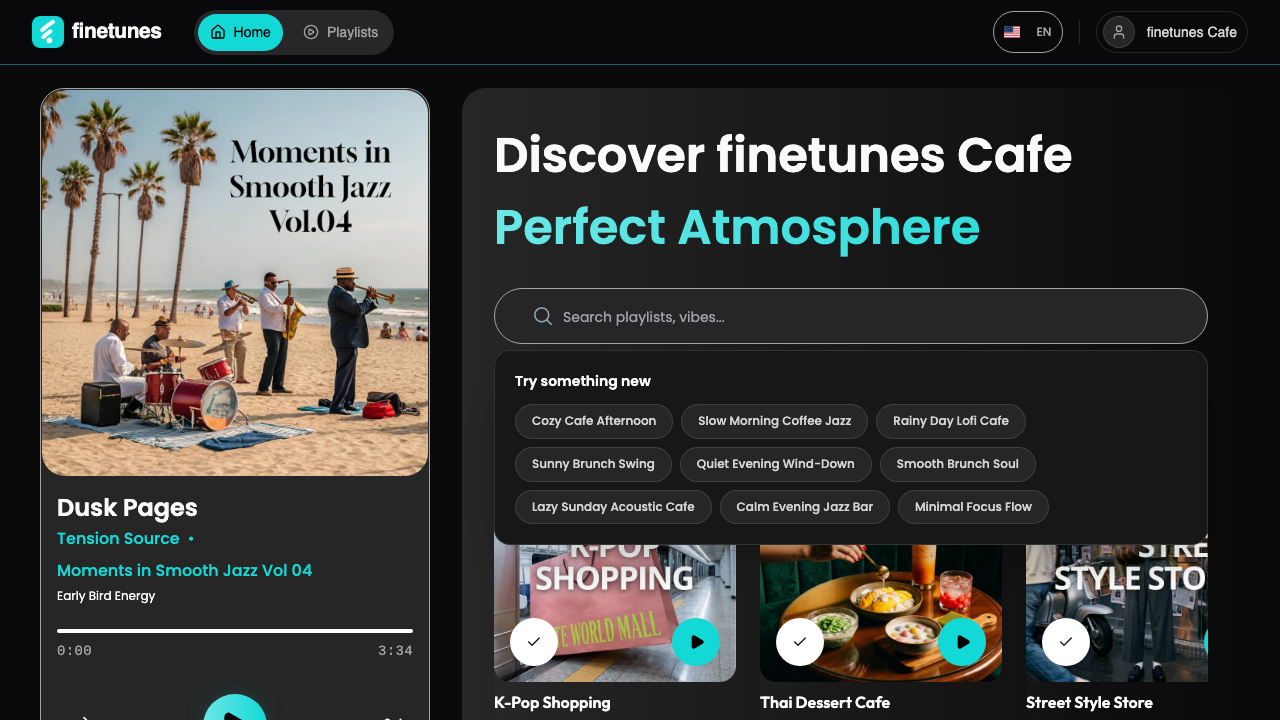 Search groups results and remembers your recent queries. (Shown in the video at the top of this page.)
- Click the search box. A dropdown shows your Recent searches and a few Try something new suggestion chips.
- Type at least 3 characters. Fewer than three runs no search. Results appear after a brief pause as you type; an × clears the box.
- Read the results. They replace the browse rows and are grouped by Playlist, Tag, Artist, Genre, Description, Track, and Other, with your search term highlighted. Each group scrolls sideways like the browse rows.
- Clear with the × or press Esc to return to browsing.
You can also share or bookmark a search: add ?q=your+term to the Home URL to open straight into those results.
When there are no results
If nothing matches — try searching zzz to see it — finetunes shows a "no results" message with a few mood chips (Mood, Afternoon, Evening, Relaxing, Energetic) to nudge you in another direction.
Recent searches are remembered in your browser. Clear them (the clear action in the Recent list) before recording or handing the screen to someone, so the panel starts fresh.
Two shortcuts into search
Beyond typing a query, there are two faster ways into the same search — each has its own page:
- Search by tag → — click any tag on a playlist and finetunes searches for everything that shares it.
- Search suggestion → — just click the search box and pick one of the "Try something new" suggestion chips.
What you can search
Search only returns music that's available to your organisation, so results depend on what's shared to your account. If a search comes up short, it usually means those playlists aren't assigned to your venue yet — not that they don't exist.
Next
- Search straight from a playlist? Search by tag →
- Not sure what to look for? Search suggestion →
- Add a playlist you found? Playlist queue →
- Let finetunes suggest for you? Pick for you →