Both tiers
Standalone venues do this on their own player. Enterprise HQ admins do the same for each branch from the Console.
Disable a playlist
Disable switches a playlist off but keeps it in the playlist queue. Use it when a playlist should stay ready but not play for now: a seasonal set outside its season, or an event playlist between events.
Disable it
- Open Playlists and find the playlist in the queue.
- Open the three-dot menu on its row.
- Press Disable.
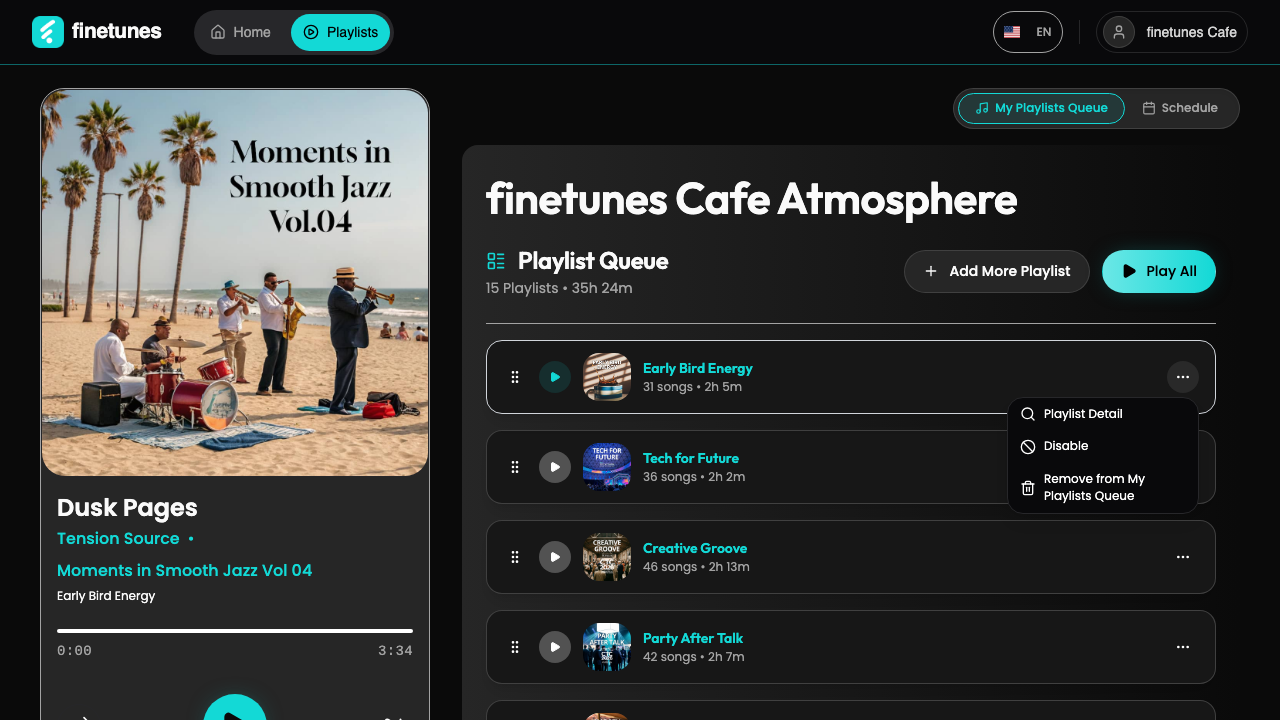 The three-dot menu on a queue row. Disable is the second action.
The playlist keeps its place in the queue. The row turns grey, a Disabled badge appears next to the name, and its play button no longer responds.
What a disabled playlist does to playback
- Continuous playback skips it. Play All and the queue's automatic run go from the playlist before it straight to the one after it.
- It cannot be started by hand. The play button on a disabled row is greyed out.
- It is not offered when building a schedule. A disabled playlist does not appear in the Queue panel or in the playlist picker of the Schedule editor.
Enable it again
Open the same three-dot menu. The action now reads Enable. Press it and the playlist is back in the rotation at the same position, with nothing to re-add or reorder.
Disable or remove?
| Disable | Remove | |
|---|---|---|
| Stays in the queue | Yes, in the same position | No |
| Plays | No, skipped | No |
| Bring it back | Enable, one press | Add it again and reorder |
| Use it for | A playlist you want to pause but keep ready | A playlist that no longer belongs at the venue |