This article covers the Enterprise HQ dashboard. If you have a Music (artist) account, your dashboard is different. See Music (artist) dashboard.
HQ Dashboard tour
The HQ Dashboard is the monitoring view for Enterprise admins. From one screen you can see which branches are playing right now, how much each branch played over a period you choose, and which branches need a phone call.
By the end of this tour you'll know:
- How to read branch status at a glance
- Where to find playtime per branch
- What a branch's detail panel tells you about its device
Open the dashboard
Sign in at the Console, play.finetunes.app/console, with your HQ admin account. HQ accounts sign in here, not on the player login page. See Console sign-in for the full walkthrough. The HQ Dashboard is the page you land on.
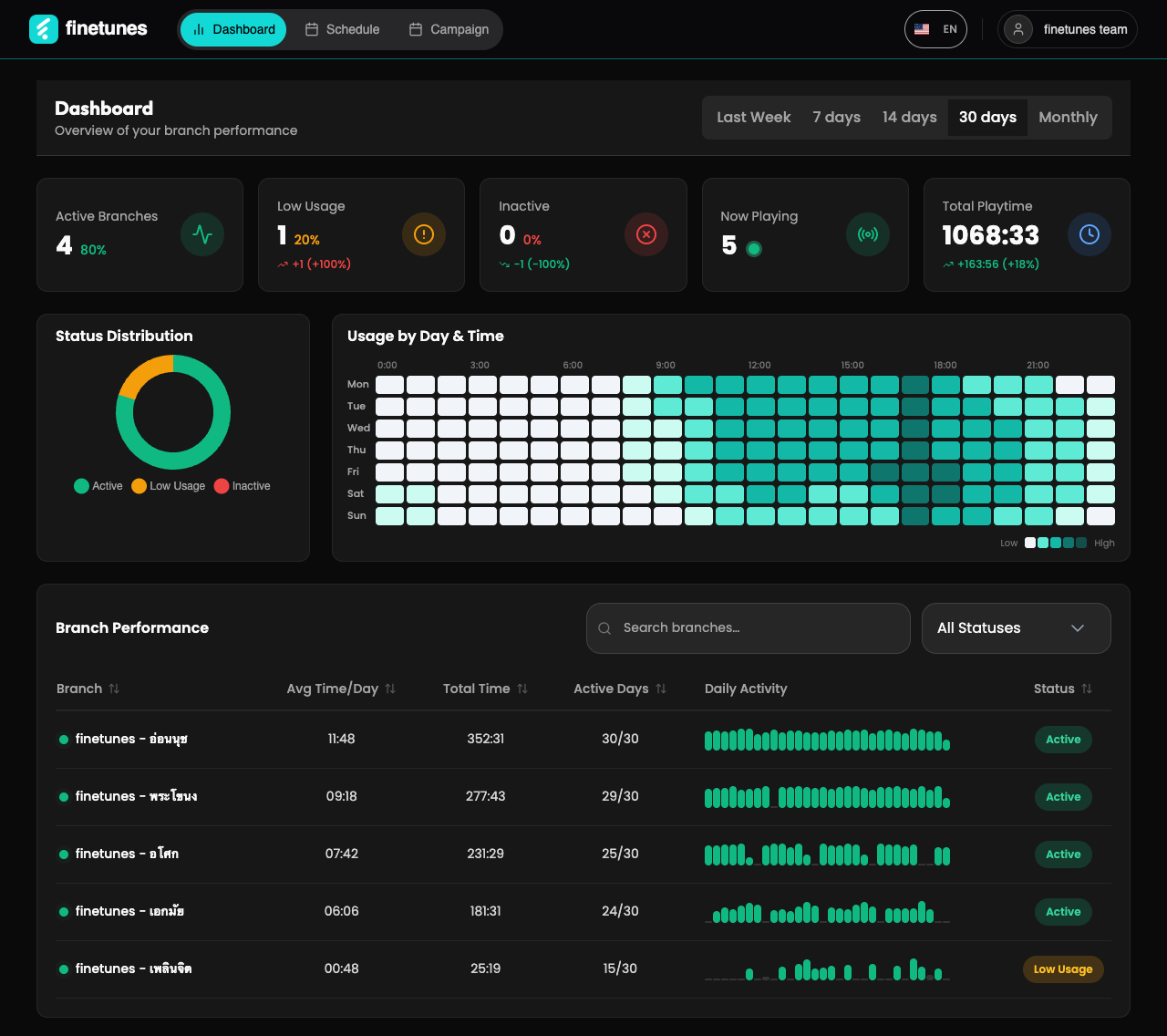 The whole HQ Dashboard: KPI cards, status mix, busy hours, and every branch in one table. Sample data.
A walk through the HQ Dashboard: read the cards, change the period, work the branch table, and open two branches.
Chapters: 0:00 Dashboard · 0:04 Branch status at a glance · 0:11 Status mix and busy hours · 0:18 Change the period · 0:25 Branch table · 0:47 A branch playing now · 1:04 A Low Usage branch
Pick the period
Every number follows the period selector at the top right: Last Week, 7 days, 14 days, 30 days (the default), or Monthly, which adds arrows to step back through earlier months.
Branch status is worked out from the total playtime over the whole period, not per day. A branch that is Active over 30 days can show Low Usage over 7 days. That is expected, not an error.
Headline numbers
| Card | What it shows |
|---|---|
| Active Branches | Branches that played enough over the period to count as active. |
| Low Usage | Branches that played, but less than the active threshold. |
| Inactive | Branches that played nothing in the period. |
| Now Playing | Branches whose device is playing right now. Refreshes about every 30 seconds. |
| Total Playtime | Playtime across all branches (hours:minutes), with the change against the previous period. |
Each card compares itself with the period before.
Status mix and busy hours
- Status Distribution shows the split of Active, Low Usage, and Inactive branches.
- Usage by Day & Time is a weekday-by-hour grid in Thai time. Darker cells mean more playing. Hover a cell to see the day, hour, and activity level.
Branch Performance
One row per branch, with Avg Time/Day, Total Time, Active Days, a small Daily Activity chart, and Status.
- Search a branch by name.
- Filter by status: All Statuses, Active Only, Low Usage Only, or Inactive Only.
- Sort by clicking a column header.
The dot and the Status column
Each row in the branch table shows two kinds of status. Don't mix them up:
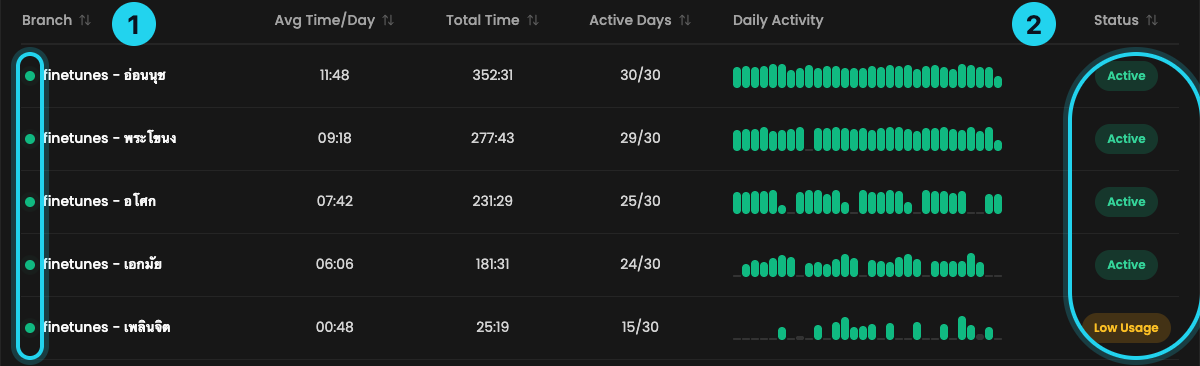
| Where in the row | What it tells you |
|---|---|
| 1 · Dot before the branch name (far left) | Playing right now? green, pulsing: playing. yellow: online, but not playing (music paused or stopped). red: not connected (player closed, screen off, or offline). Refreshes about every 30 seconds. |
| 2 · Status column (far right) | How much the branch played over the selected period: Active, Low Usage, or Inactive. Changes with the period, not with what's playing now. |
A yellow or red dot next to Active is normal: the branch played plenty this period but is quiet at this moment.
Branch status
| Status | Rule over the selected period | What to do |
|---|---|---|
| Active | 42 hours of playtime or more in total | Nothing. This is the normal state. |
| Low Usage | Some playtime, but under 42 hours | Worth a call to the branch. |
| Inactive | No playtime at all | Follow up first. |
Branch detail
Click a branch row to open its detail panel:
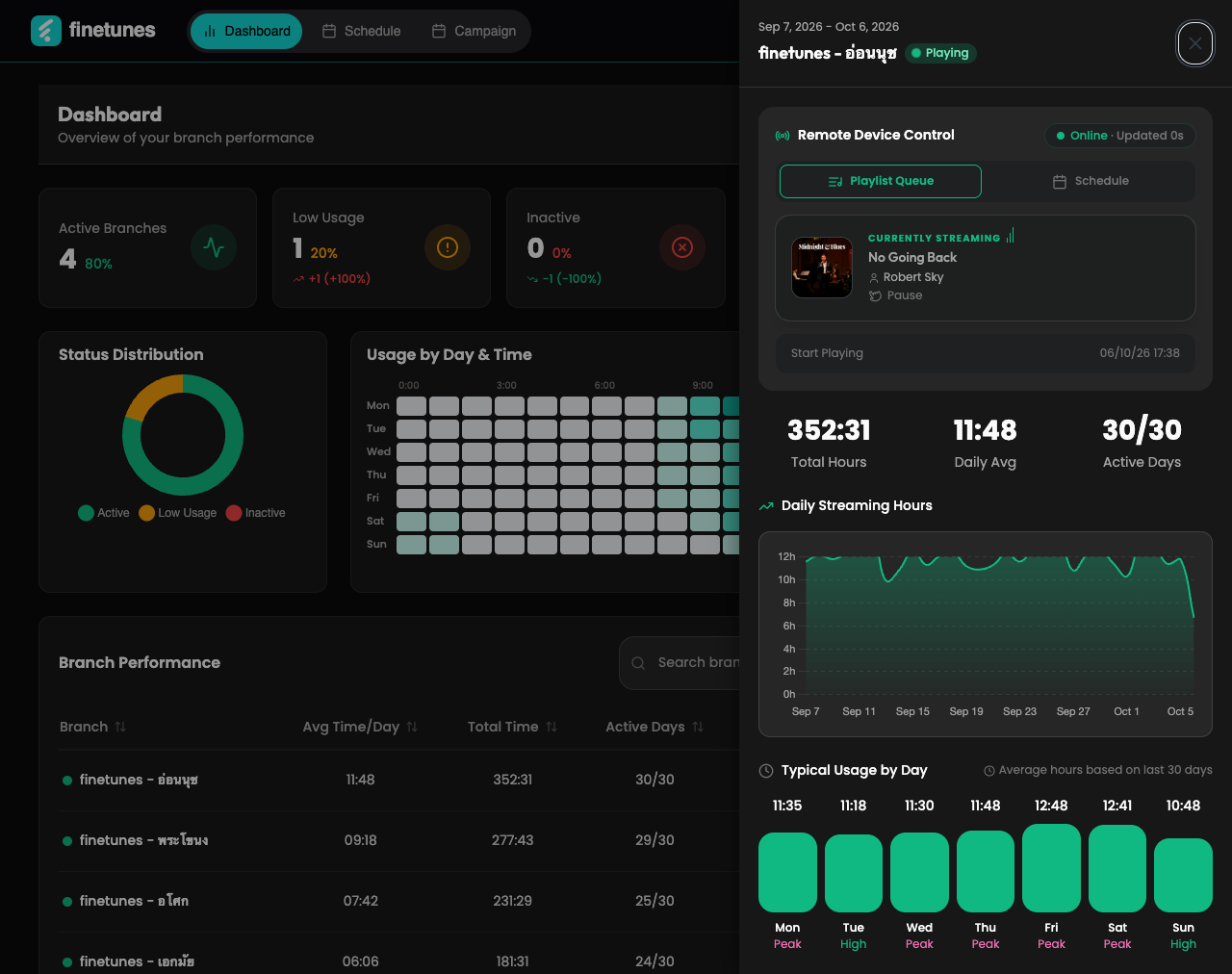 A branch playing right now: the device is Online, the current track is shown, and below it the branch's playtime.
- Remote Device Control shows whether the branch's device is online, and when it last checked in.
- Playlist Queue / Schedule: the mode the device plays in when you start it from here. It shows the device's current mode; pick the other one before you press play to switch.
- Currently streaming: the track playing now, with a Pause button. See Play and pause a branch remotely.
- Total Hours, Daily Avg, and Active Days for the period.
- Daily Streaming Hours: hours played each day.
- Typical Usage by Day: the usual hours per weekday, marked Peak, High, and so on.
Play and pause a branch remotely
From the branch's detail panel you can start or stop the music at that branch without being there.
Remote control only reaches a device that is Online with the finetunes player open on its screen: the app in the foreground, or the browser tab showing the player. If the app is closed, the browser tab is closed, or the screen is off, the command can't get through.
- Click the branch's row on the dashboard to open its detail panel.
- Check that Remote Device Control shows Online.
- Choose the mode the device should play in: Playlist Queue or Schedule. The highlighted one is the device's current mode.
- Press Tap to play to start music, or Pause to stop it.
What you'll see after pressing:
| Message | What it means |
|---|---|
| Sending command to player | The command is on its way. The player usually reacts within 3–5 seconds. |
| Command sent successfully, player responded | Done. The music at the branch has started or stopped. |
| No response yet · Tap to retry | The player hasn't answered. Check that it's still open on screen, then retry. |
| Cannot execute command now · Player is not connected | The device is offline. The command is not sent and not queued, so send it again once the player is open. |
| Command expired (device offline) | The device went offline before it could act on the command. |
After each command there's a short cooldown before you can send the next one, so a double tap doesn't flip the music on and off.
Tap to play and Pause change what customers hear at the branch, not just your screen.
Device status
This is the state of the device, shown in Remote Device Control in the detail panel. It is separate from the Status column in the table.
| Device | Dot in the table | What it means | What to do |
|---|---|---|---|
| Online, playing | Green, pulsing | The device is connected and playing. | Nothing. |
| Online, not playing | Yellow | The device is on, but music is stopped. | Often a break between shifts. Start it with Tap to play if it should be playing. |
| Offline | Red | The device hasn't checked in for about 90 seconds. | Check that the player is open on screen and the branch's internet is working. |
"Now Playing" refreshes about every 30 seconds; branch figures about every 5 minutes. If a number looks stale, switch the period and back.
Next
- On a Music (artist) account? Music dashboard →
- Choosing what each playpoint plays? Playlist queue →
- Different music at different times? Schedule →
- Setting up your first playpoint? Enterprise rollout playbook →
- Want to brief playpoint staff? Forward the one-pager →
- Curious what playpoint staff can do at the player? Storefront mode →