Playlist queue
Every playpoint plays from a queue of playlists — finetunes calls this the playpoint's soundscape. The queue is an ordered list: the player works down it and loops, so the order you set is the order the venue hears.
This article covers both ways to manage that queue:
- Self-serve operators manage their own venue's queue on the player, at
/playlists. Start at Open the queue. - Enterprise HQ admins manage each branch's queue from the Console. Skip to Manage a branch's queue from the Console.
By the end you'll know:
- How to read a playpoint's queue at a glance
- How to add and reorder playlists
- Where to disable a playlist for a while, or remove it from the queue
- Who can change the queue, and who can't
Open the queue
Sign in at play.finetunes.app with the account that manages the playpoint, and open the Playlists view. The header shows the playpoint name with its atmosphere, plus the total number of playlists and the combined running time.
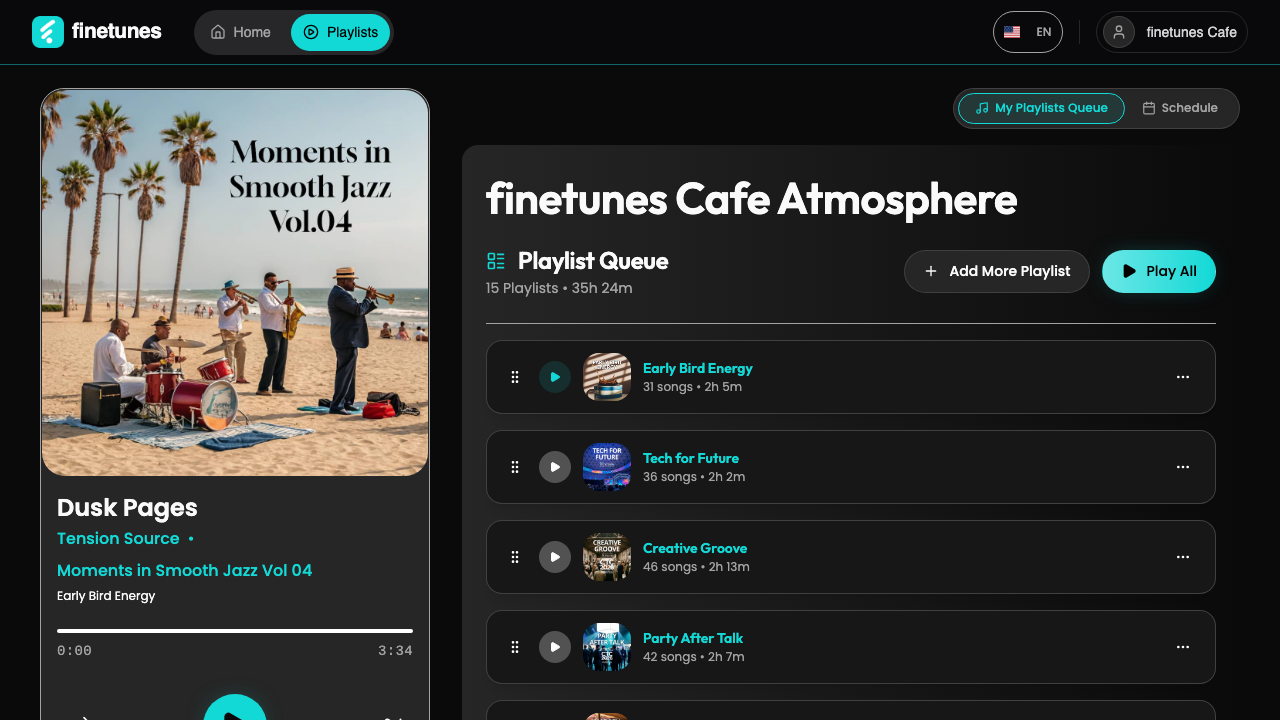 The queue for one playpoint: ordered playlists down the page, with Add More Playlist and Play All at the top.
From the queue, opening Home to browse and add another playlist via its preview.
Chapters: 0:00 Playlist Queue · 0:07 Browse Home · 0:39 Playlist Preview · 0:51 Updated Queue
The terms you'll see:
| Term | What it means |
|---|---|
| Soundscape | The full set of playlists assigned to one playpoint. |
| Queue | The ordered list of playlists inside that soundscape. |
| Atmosphere | The playpoint's overall sound — the soundscape as the venue experiences it. |
| Playpoint | The venue or location the music plays at. |
Add a playlist
- Click Add More Playlist. This opens the browse view.
- Find a playlist by category, search, or the recommendations finetunes suggests for the venue.
- Click a playlist to add it to the queue. It lands at the bottom — reorder it next if it needs a different slot.
A queue can hold as many playlists as the venue needs. More playlists means a longer rotation before the music repeats.
Set the order
Playback follows the queue top to bottom, so the order is how you shape the day's arc — calmer playlists up top for the morning open, livelier ones lower down, for example.
To reorder, drag a playlist by its handle (the grip on the left of each row) and drop it where you want. A cyan line shows where it will land. The new order saves on drop.
Reordering changes the rotation — the sequence the player loops through all day. If you instead want a playlist to play only at certain times (mornings vs. evenings), that's a schedule, not the queue order. See Schedule music by time of day.
Play All
Play All starts playback from the top of the queue. Use it to preview the rotation after you've made changes, so you hear what the playpoint will hear.
Once music is playing, the controls live in different places by screen size:
- On a wide screen (≥1024px) — a left player sidebar with play/pause, previous, skip, shuffle, and mute.
- On a narrow screen (below 1024px, including tablets) — a mini now-playing bar above the bottom navigation, with shuffle, play/pause, skip, and a progress bar. Tap it to open the full player.
If the free trial has ended and there's no active subscription, pressing play prompts to subscribe and skipping is disabled. See Subscribe.
Adding from a playlist page
You can also add music while browsing: open any playlist from Home and click Add to My Playlists Queue (the button is named after your queue). It flips to Remove, and the playlist appears at the bottom of this queue — reorder it from here.
Who can change the queue
If you run a single venue yourself, the queue is yours: you add, reorder, and remove playlists on your own player, exactly as described above.
On Enterprise accounts the queue is HQ-controlled instead. From the playpoint itself, staff running Storefront mode can keep music playing but cannot change the queue — no adding, reordering, or removing. That's deliberate: it keeps every venue on the brand's curated sound.
When you change an Enterprise branch's queue from HQ, the playpoint picks up the change the next time its player loads.
Direct HQ-initiated push to a specific playpoint is coming soon. Until it ships, queue changes are configured per-playpoint here and take effect on the playpoint's next player load. The changelog announces it when live.
Manage a branch's queue from the Console (Enterprise)
Enterprise HQ admins manage each branch's queue from the Console, not the branch's own player. After Console sign-in, open Schedule in the navigation — the management page at play.finetunes.app/enterprise/schedule/management.
Selecting a branch, then adding a playlist to its queue from the Console. (Recorded on staging.)
- Select a branch from the dropdown. The Console loads that branch's soundscape (it impersonates the branch, so the now-playing bar reflects it — that's expected).
- Open Playlists & Schedule, then the My Playlists Queue view.
- Add, reorder, disable or remove playlists exactly as on the player — the changes apply to that branch's queue.
- Switch branches from the same dropdown. If you have unsaved edits, the Console asks you to confirm before switching.
If a branch has no soundscape yet, the Console tells you and stops — set one up first. Only Enterprise ADMIN accounts can open this page.
While you manage a branch, the Console is in admin preview mode: a playlist you play there plays in your browser only, isn't sent to the branch's player, and doesn't move on to the next song by itself. To start or pause music at the branch itself, use the branch's detail panel on the HQ Dashboard.
On the mobile app
The same queue appears in the finetunes mobile player, with the same controls. On a managed playpoint device the queue is read-only, matching Storefront mode. Downloaded playlists also play offline — see Offline mode.
Next
- Pause a playlist without losing its place? Disable a playlist →
- Take a playlist out of the queue? Remove a playlist →
- Play different playlists at different times? Schedule music by time of day →
- HQ admin overview? HQ Dashboard tour →
- What playpoint staff can do? Storefront mode →