Standalone venues do this on their own player. Enterprise HQ admins do the same for each branch from the Console.
Remove a playlist from the queue
Remove from My Playlists Queue takes a playlist out of the playlist queue of this playpoint. The playlist itself is not deleted: it stays in the catalogue and can be added back any time.
Remove it
- Open Playlists and find the playlist in the queue.
- Open the three-dot menu on its row.
- Press Remove from My Playlists Queue.
- Confirm with Remove from My Playlists Queue in the Remove Playlist dialog.
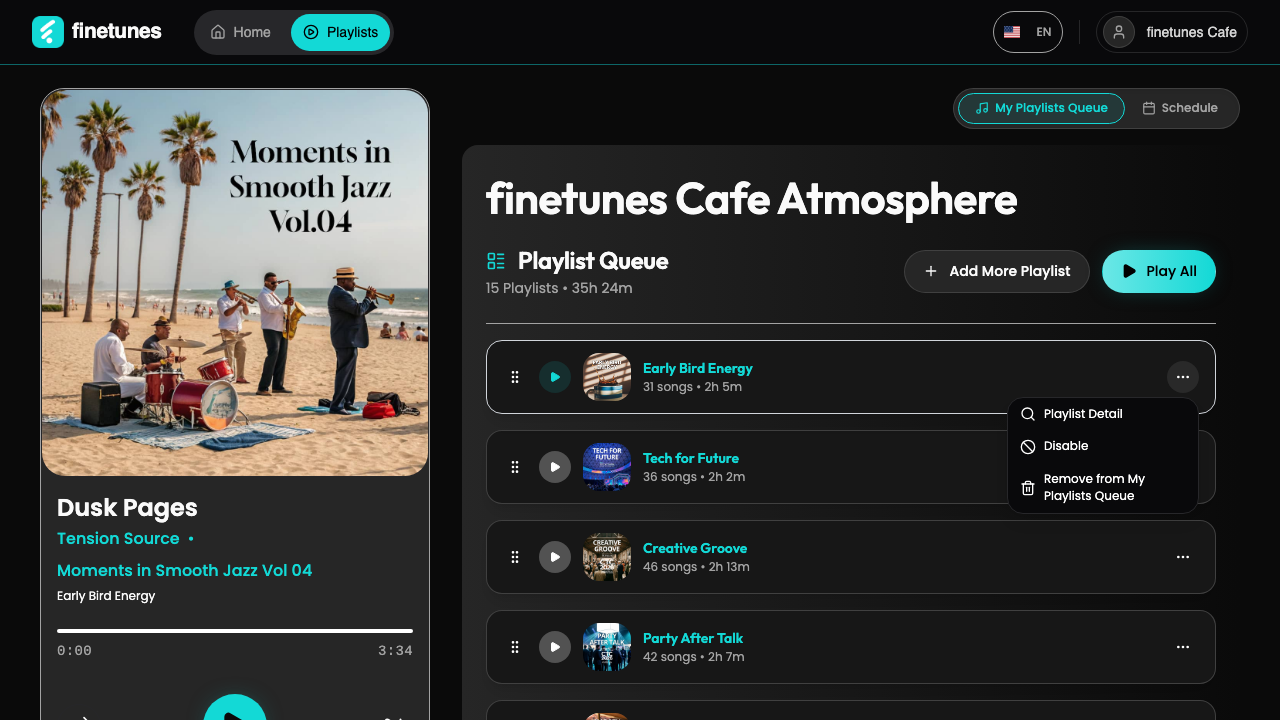 The three-dot menu on a queue row. Remove from My Playlists Queue is the last action.
The confirmation appears on the first removal after you open the page. Further removals on the same visit go through straight away.
If the playlist is in the schedule
When the playlist is used in a Schedule block, the confirmation always appears and says the playlist is part of the schedule. Press Cancel to keep it, or confirm to remove it. Check the schedule afterwards so the time slot it covered still has music.
Bring it back
Removing cannot be undone with a button. To bring the playlist back, add it again with Add More Playlist, then drag it to the position you want. See Add a playlist.
Remove or disable?
If you only want the playlist to stop playing for a while, Disable it instead. It keeps its place in the queue and comes back with one press.