Schedule
A playlist queue plays the same rotation all day. A schedule lets a venue play different playlists at different times — soft acoustic for the morning open, something livelier over the lunch peak, a relaxed wind-down in the evening — switching automatically, with no one touching anything.
This article covers scheduling on the player's Schedule tab. Self-serve operators and playpoint Managers build and run their own schedule; for Enterprise branches it's managed from the Console — see From the Console below.
By the end you'll know:
- What a schedule is and how it relates to the queue
- How to build a day from time blocks on the calendar
- How to start schedule mode so it runs on its own
- What happens at times you haven't scheduled
Drawing a time block on the calendar, picking its playlist, then saving. (Recorded on a test account.)
How scheduling works
Open play.finetunes.app/playlists and switch to the Schedule tab. You'll see a day calendar — a 24-hour grid that opens scrolled to the morning (08:00), with a line marking "now".
A schedule is made of schedule blocks. Each block is just two things:
| Part of a block | Example |
|---|---|
| Time window | 08:00 – 11:00 |
| Playlist | Morning Acoustic |
When the clock enters a block's window, the venue plays that block's playlist; when the window ends, the next block takes over.
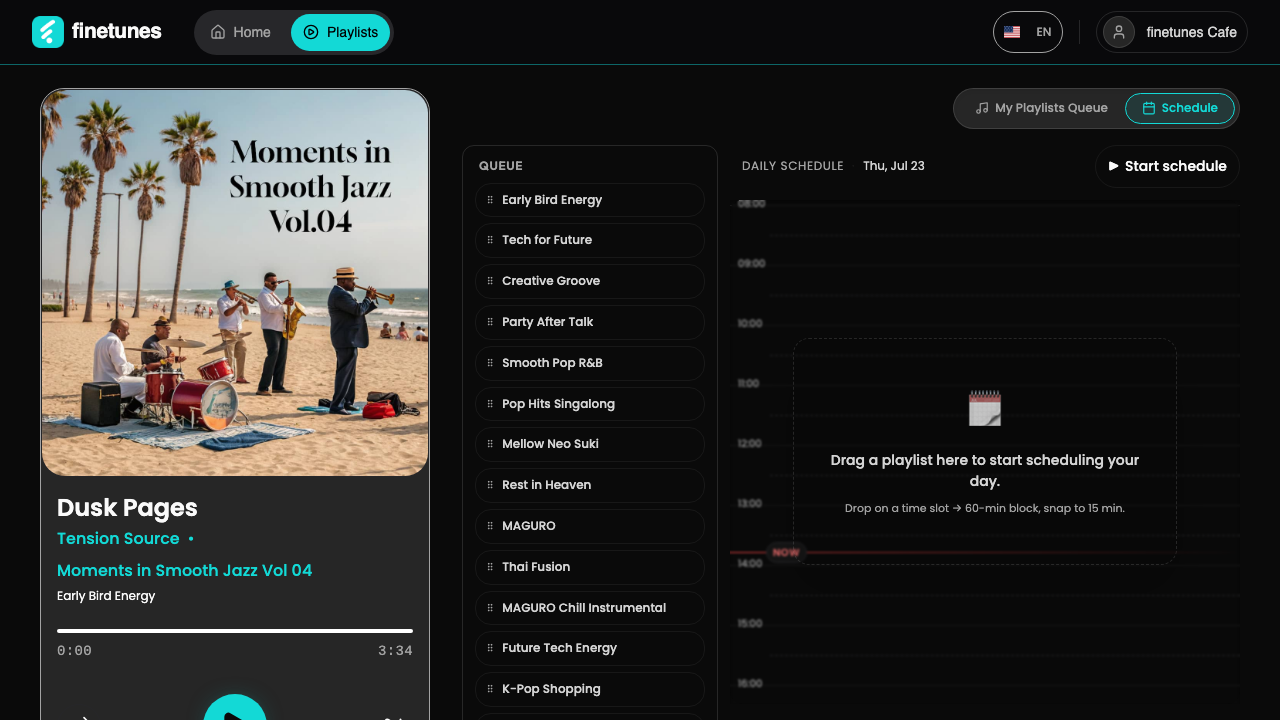 A day built from three blocks: morning, midday, and afternoon, each with its own playlist.
Every block repeats daily — there's no per-day or date picker. A block you create for 08:00–11:00 plays 08:00–11:00 every day. (Add the playlists you want to schedule to your queue first.)
Build a day from blocks
You create a block two ways:
- Drag a playlist from the Queue panel onto the grid (desktop), or
- Draw a range on an empty part of the grid, then pick a playlist from the popover.
Only enabled playlists are offered. A playlist you have disabled in the queue does not appear in either list until you enable it again.
Then shape it:
- Blocks snap to 15-minute steps; a new block defaults to 60 minutes.
- Move or resize a block by dragging it; click a block to swap its playlist; delete a block you don't want.
- Lay blocks back-to-back to cover the venue's open hours.
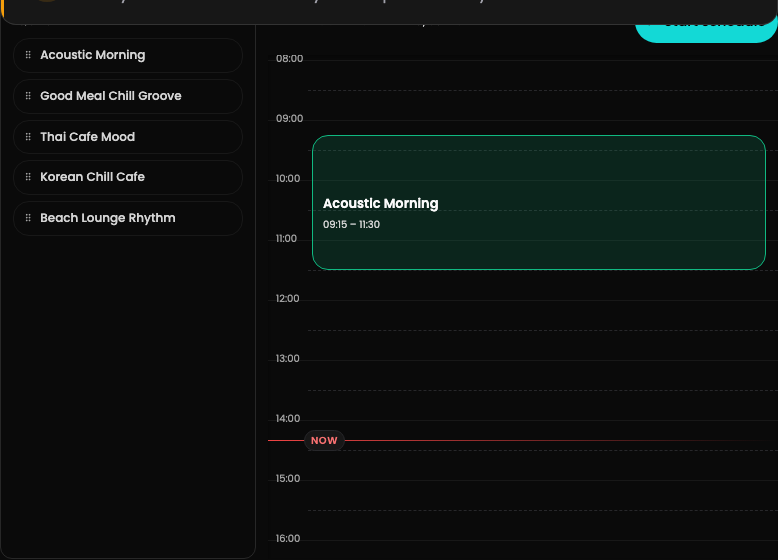 A single block: a time window and the playlist it plays, repeating daily.
A clean day often needs just three or four blocks — open, peak, afternoon, close. Start simple; you can split a window later.
Conflicts and gaps
- Overlaps — two blocks covering the same time raise a conflict. A conflict toast appears and Save is blocked until you fix it; Show conflict scrolls you to the overlap.
- Gaps — a time with no block is unscheduled (silent in schedule mode). Plan blocks back-to-back so there's never a silent stretch during open hours.
- Outside operating hours — you don't need to schedule hours the venue is closed.
Save and start
Your edits are a draft until you save. A floating bar offers Discard or Save — Save writes all your blocks at once.
To run the schedule, press Start schedule (▶). The venue switches to schedule mode: it plays the block that's active right now, or waits silently for the next window if nothing is scheduled yet. Press again to stop.
Once running, finetunes checks the schedule every few seconds and switches playlists at each boundary — but it never cuts off a track mid-play, so a change lands cleanly at the next track rather than jarring the room.
Two layers. The queue decides which playlists belong to a venue. The schedule decides when each one plays. Add a playlist to the queue first, then place it into a time block here.
From the Console (Enterprise)
For Enterprise branches, the schedule is HQ-controlled from the Console. After Console sign-in, open Schedule → select a branch → Playlists & Schedule → Schedule View. The calendar, blocks, conflicts, and Save work exactly as above.
The page stays empty until you pick a branch from the dropdown at the top right; until then it only asks you to select one. While you work, the Console runs in admin preview mode: anything you play there plays in your own browser only, isn't sent to the branch's player, and doesn't move on to the next song by itself.
Authoring a branch's schedule from the Console — drawing a time block. (Recorded on staging.)
One role difference: an HQ admin can author the schedule (create, edit, save blocks) but the Start/Stop playback toggle is hidden — starting schedule playback is done by a Manager account at the branch. Playpoint staff in Storefront mode don't see the schedule at all.
Next
- Choosing the playlists to schedule? Playlist queue →
- HQ admin overview? HQ Dashboard tour →
- Rolling out playpoints? Enterprise rollout playbook →