This article applies to finetunes Enterprise accounts.
Storefront mode — what playpoint staff can and can't do
Storefront mode is the playback-only finetunes player given to playpoint staff. It's deliberately narrow: playpoint staff can keep music playing, but they can't change the playlist, log out, or alter HQ-controlled settings.
This article exists so HQ admins can brief playpoint staff confidently and so playpoint staff know what to expect.
What Storefront mode looks like
When a playpoint staff member opens the player, they see a stripped-down view: the currently-playing track, basic playback controls, and nothing else.
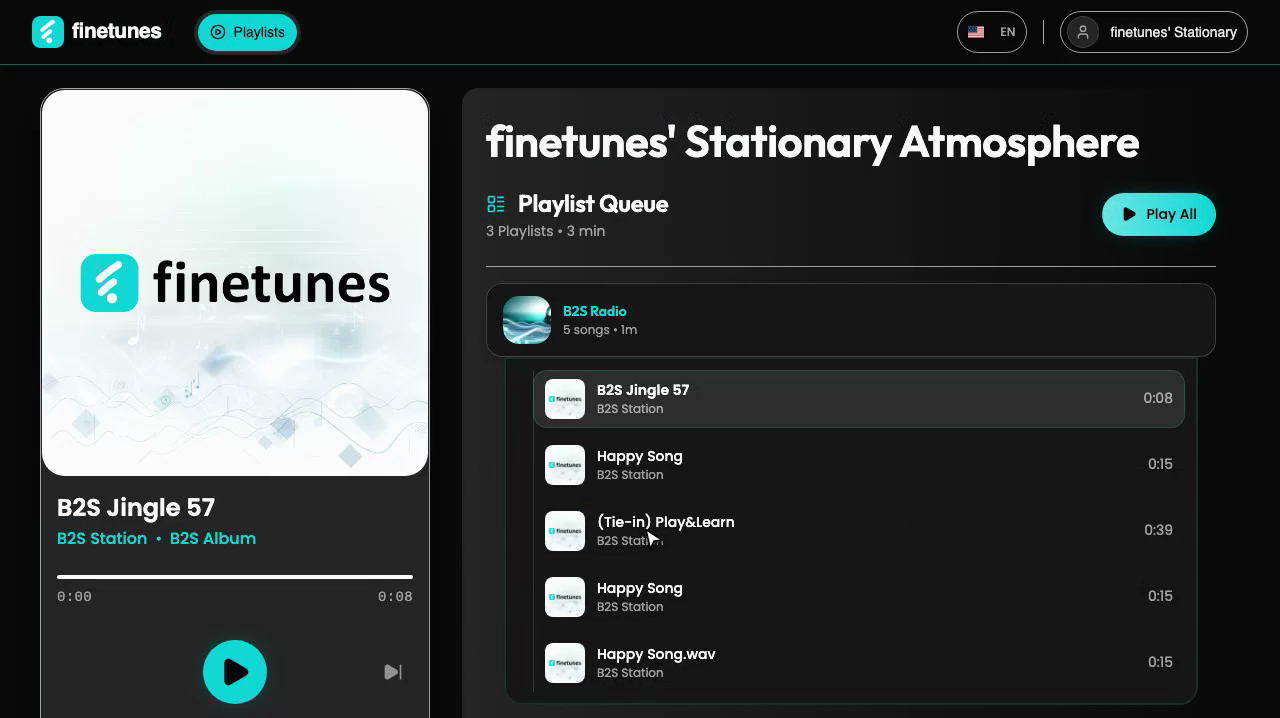 Storefront mode on a real playpoint: the now-playing track, play/pause, and the playlist queue HQ assigned, which staff can see but not edit.
There's no playlist library, no genre browser, no account menu. By design.
How to install
Storefront mode is available three ways. Your account manager will recommend the right option per playpoint:
- Browser — open play.finetunes.app and sign in. Lightest setup, works on any device with a browser.
- App Store / Play Store — install the official finetunes app. Best for managed mobile devices already integrated with your fleet management.
- Packaged installer — the most locked-down option. Your account manager sends an installer file. Once installed, staff cannot exit out of playback. Best for retail floors and quick-service environments where the device should never show anything but the player.
All three sign in with the same Storefront account credentials and behave the same once running.
What playpoint staff can do
| Action | Allowed in Storefront mode? |
|---|---|
| Press play / pause | Yes |
| Skip to the next track | Limited (see below) |
| Adjust the volume of the player itself | Yes |
| Reload the page if music stops | Yes |
| Pick a different playlist | No — only HQ can |
| Browse the music library | No |
| Log in to a different account | No |
| Change account or HQ settings | No |
Skipping tracks
Playpoint staff can skip occasional tracks (a customer asks, a track really doesn't fit), but skips are bounded — the system does not allow rapid-fire skipping that would effectively bypass the assigned playlist. If staff find themselves wanting to skip frequently, the underlying issue is the playlist assignment, not the next track.
The fix is a phone call to HQ to reassign the playlist — not skipping forever.
Recovery actions
If music stops, playpoint staff have a short, well-defined ladder:
- Check speakers and volume.
- Press play again.
- Reload the page.
- Check the venue's internet.
- Call HQ.
Full version: Playpoint staff one-pager.
What HQ does, not the playpoint
These belong on HQ Dashboard, not Storefront mode:
- Choose the playlist the playpoint plays
- Change the playlist when the venue's needs change (e.g., daytime vs. evening)
- Add, remove, or transfer a playpoint
- View live status and playback hours per playpoint
For the HQ side, see HQ Dashboard tour.
HQ-initiated playlist push to a specific playpoint is coming soon. Until it ships, playlist changes are configured per-playpoint from HQ Dashboard and pick up at the playpoint the next time the player loads. The changelog announces it when live.
Why the constraints?
A few reasons playpoint staff don't get full controls:
- Brand consistency — HQ has a curated music identity for the brand; per-playpoint DJ tendencies erode it fast.
- Licensing scope — the licensed-music certificate covers what HQ has assigned. Off-script choices muddy that.
- Recovery clarity — when something breaks, a narrow tool means one short ladder of recovery steps. Playpoint staff don't have to think.
If you want a different access model for a specific playpoint (for example, an event manager who needs to swap playlists for private events), use a Manager account instead of a Storefront account at that playpoint — Manager mode gives a single playpoint full playback control without breaking Storefront for everywhere else. Contact your account manager to switch a playpoint's account type.
Next
- Playpoint staff: The 30-second one-pager →
- HQ admin: HQ Dashboard tour →
- Rolling out: Enterprise rollout playbook →