This playbook is for HQ admins rolling finetunes out across multiple playpoints. If you're a single-venue operator, see Start Here → instead.
Enterprise rollout playbook
Five steps from contract signature to every playpoint playing music. Most rollouts move quickly — the slow parts are physical (do all playpoints have a player device on a reliable network?), not software.
By the end of the playbook you'll have:
- A working HQ Dashboard with all your playpoints added
- One pilot playpoint live in Storefront mode
- All remaining playpoints rolled out
- Playpoint staff briefed and self-sufficient
HQ Dashboard sits at the centre. Each playpoint runs Storefront mode (or Manager mode where curating control is needed); HQ assigns playlists and monitors live status.
We say playpoint because one location can have several. A hotel with a lobby bar and a rooftop bar is one address but two playpoints — each gets its own account, its own playlist, and its own row on HQ Dashboard.
1. Kickoff with your account manager
Your account manager runs a kickoff call to:
- Confirm the list of playpoints to onboard (names, addresses, time zones).
- Collect email addresses for every account we need to provision: one HQ account plus one account per playpoint.
- Walk you through HQ Dashboard live (this guide is open in another tab during the call).
- Agree which playpoint goes first as the pilot.
- Schedule the rollout window for remaining playpoints.
After the call, your account manager will:
- Create your HQ account and all playpoint accounts from the email list.
- Send credentials for each.
- For any playpoint that wants Storefront mode, send either the lockdown installer file or the App Store / Play Store download link — whichever fits that playpoint better. Some teams prefer the locked-down installer for retail floors; others prefer the official store install for managed mobile devices.
This guide is meant to be open during the call so the account manager can refer to specific sections rather than narrate from scratch. Bookmark guide.finetunes.app/quick-start/enterprise before the meeting.
The three account types
Read this before Step 2. It's the mental model behind the rest of the rollout — you'll move faster through HQ Dashboard if you already know who logs in where.
Enterprise finetunes uses three account types. The HQ account sits above the other two; Manager and Storefront sit at the same level under HQ.
HQ account
The control account. Manages all playpoints, assigns playlists, and sees analytics across the organisation. Cannot play music itself — playback is delegated to the playpoints.
- Who uses it: HQ admins, brand managers, regional leads.
- How to access: play.finetunes.app in any browser.
Full walkthrough: HQ Dashboard tour →.
Manager
A playpoint-level account with full playback control. Can play, skip tracks, and modify playlists for that playpoint. Functionally equivalent to a Standalone account, scoped to the playpoint it's assigned to.
- Who uses it: Playpoint manager, shift lead, anyone behind the bar/counter who needs flexibility.
- How to access: play.finetunes.app in a browser, or the iOS / Android app.
Storefront
The locked-down playback account. Press play. Nothing else — no skip beyond a small allowance, no playlist edits, no settings.
- Who uses it: Playpoint staff who only need to start music at the top of a shift.
- How to access: play.finetunes.app, the iOS / Android app, or the packaged installer sent by your account manager. The packaged installer is the most locked-down option — staff cannot exit out of playback.
Full walkthrough: Storefront mode →.
Most retail and F&B playpoints run Storefront. Bars, hotels, and venues with a curating manager run Manager. You can mix-and-match across playpoints.
2. HQ Dashboard tour
Sign in at play.finetunes.app/console with your HQ admin account. The dashboard loads as your default view.
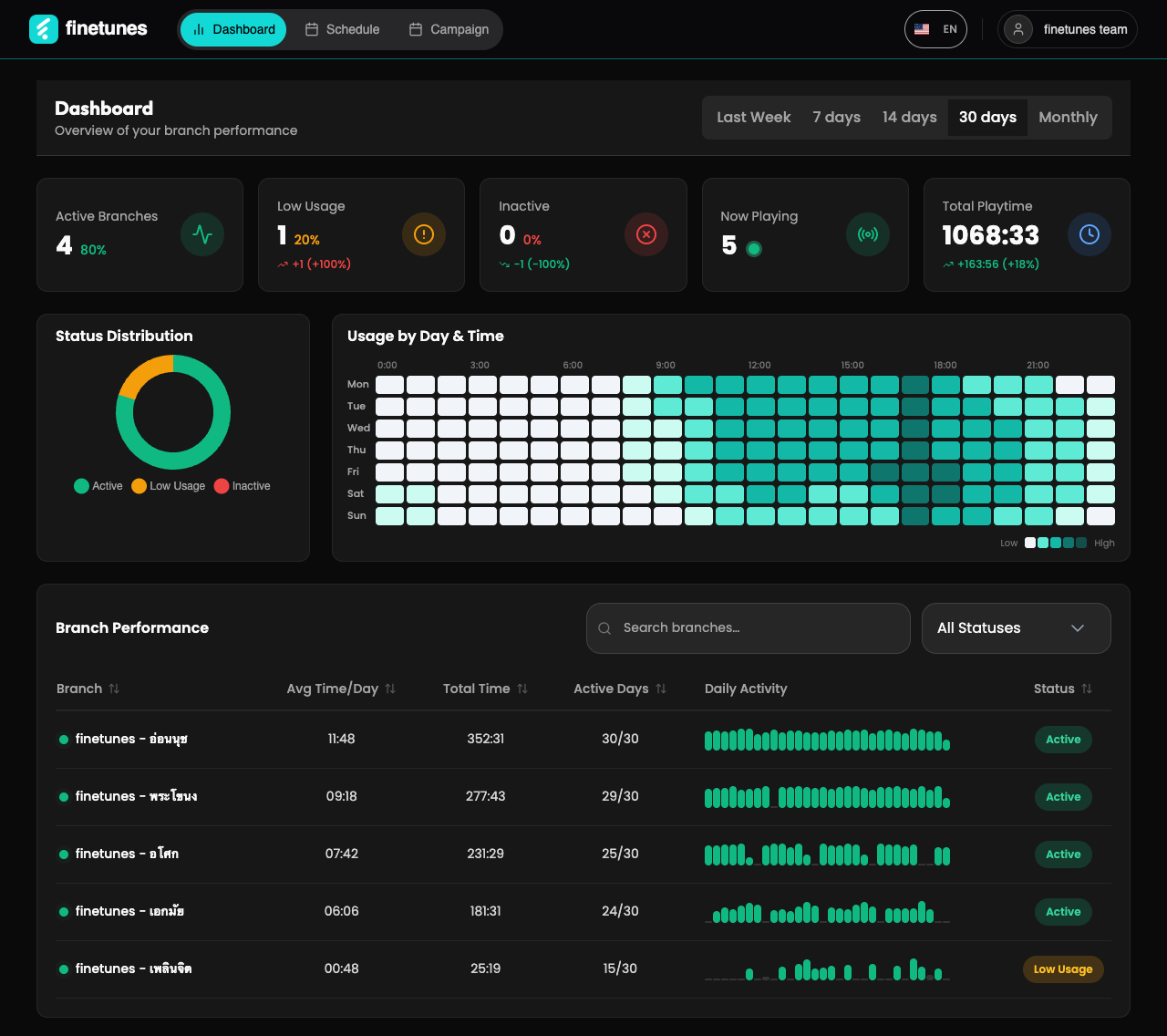
HQ Dashboard tour — KPIs, status distribution, usage heatmap, the branch table, and a branch's detail panel.
Spend ten minutes here before you touch a playpoint — you'll find:
- The playpoint list (preloaded by your account manager during kickoff)
- Now Playing and each branch's device status (devices show Offline until the playpoint starts playing)
- Playlists are assigned per branch from the Console's Schedule page. See Manage a branch's queue from the Console
- Playback metrics (initially empty — populates after playpoints start playing)
Full walkthrough: HQ Dashboard tour →.
Assign the playlist for the pilot playpoint only at this stage. Holding off on the rest forces you to revisit the dashboard once the pilot is live, which is when you'll have a better feel for what works.
3. Set up your first playpoint in Storefront mode
Pick one playpoint as your pilot. Smaller, lower-traffic playpoints are good first candidates — fewer customers if something needs adjustment, and the playpoint manager has more bandwidth to give feedback.
At the pilot playpoint:
- Confirm the playback device. A tablet or laptop dedicated to music near the bar/counter, on the venue Wi-Fi. Plugged in or with the cable accessible.
- Open play.finetunes.app on the device, or install from the App Store / Play Store, or run the packaged installer your account manager sent. Sign in once with the playpoint's account credentials. The device enters Storefront mode automatically.
- Press play. Confirm music plays through the venue speakers.
- Verify on HQ Dashboard. From your HQ account, the pilot should now count in Now Playing, and its detail panel should show the device Online.
Storefront mode — what playpoint staff see. Press play, nothing else to configure.
What Storefront mode allows and locks down: Storefront mode →.
Android: install the packaged player
For Android playpoint devices, your account manager will send a packaged installer (APK file) instead of pointing you at the Play Store. The installer is the more locked-down option — staff can't exit the player or switch apps mid-shift, which is what you want for Storefront mode.
- Download the app. Open the APK file your account manager shared (email, drive link, or download URL). Tap it on the Android device to start the install.
- Allow installation from unknown sources. If Android shows a security warning about installing apps from outside the Play Store, tap Accept or Install Anyway to continue. This is expected — the installer is signed by finetunes but not distributed through Google Play.
- Open the installed app, sign in with the playpoint account credentials, and press play.
iOS and Play Store installs work too, but they give staff more ways to leave the player. Use the packaged installer at any playpoint where staff lockdown matters.
iOS: install from the App Store
For an iPhone or iPad there is no packaged installer; the app comes from the App Store as finetunes: Music for Business. The step-by-step page, with a QR code and a printable Thai manual for playpoint staff, is Install the iOS app →.
The mobile app can cache playlists to local storage and keep playing if the venue Wi-Fi drops. Toggle Auto Download in Profile settings on the pilot device so a network blip doesn't silence the room. Full details: Offline mode →.
Spend a day or two with just the pilot playpoint playing before you move on. Confirm:
- The playpoint keeps playing through its operating hours, with its device Online.
- Playback hours on HQ Dashboard match the playpoint's open hours.
- The playpoint manager hasn't run into anything weird.
4. Roll out to remaining playpoints
With one playpoint live and stable, repeat step 3 across the remaining playpoints. Three patterns work:
Pattern A — Sequential (1–5 playpoints)
Roll out one playpoint per day. Easy to keep track of, easy to spot a problem playpoint.
Pattern B — Batched (5–20 playpoints)
Roll out three to five playpoints per day. Pre-stage the device + Wi-Fi + speaker check the day before; same-day login + press-play.
Pattern C — Regional waves (20+ playpoints)
Group playpoints by region or by district manager. Each wave is one batch — the regional/district manager owns confirming all their playpoints are playing.
After each playpoint:
- Open play.finetunes.app (or the installed app) on the playpoint device, sign in to its account, press play.
- From your HQ account, check on HQ Dashboard that it counts in Now Playing and its device is Online.
- Assign or confirm its playlist from the Console's Schedule page.
If a playpoint's device doesn't come Online, the issue is almost always physical: the device wasn't on the right Wi-Fi, the venue's network blocks streaming audio, or the speaker cable is loose. Walk through it physically once before assuming a software issue.
5. Train playpoint staff
Playpoint staff don't need a long training session. They need:
- The one-pager forwarded to them.
- Five minutes from the playpoint manager showing them how to press play at start of shift and what to do if music stops.
The one-pager is short, written to be readable at a counter mid-shift, and the only piece of finetunes documentation most playpoint staff will ever need.
Forward this URL: guide.finetunes.app/quick-start/playpoint-staff-one-pager
After rollout
Once all playpoints are live and steady-state:
- Monitor playback hours on HQ Dashboard. A playpoint that drops off pace is your earliest leading indicator that something needs attention.
- Adjust playlist assignments as you learn what works for each venue. Do it from the Console's Schedule page; Storefront staff don't change playlists.
- Pull up the changelog every few weeks. New HQ Dashboard features are announced there.
For everything else — billing, contracts, adding a region, adding a sister brand — your account manager. Operational issues — contact support.