For playpoint staff and the managers setting up an iPhone or iPad as the venue's music device. HQ can forward this page, or hand out the printable version below. Android device? See the Android install steps.
Install the iOS app
The finetunes app is on the App Store as finetunes: Music for Business. Installing it on a playpoint iPhone or iPad takes about five minutes and is done once per device. After that, staff only sign in and press play.
Before you start
- An iPhone or iPad on iOS 15 or later, dedicated to music at the playpoint, signed in to an Apple Account (the App Store needs one; use the venue's account, not a personal one).
- Internet, for the install and the one-time playlist download. Venue Wi-Fi or a SIM both work.
- The playpoint's finetunes login (email and password) from the area manager or HQ.
The app is free. Nothing is charged to the Apple Account.
1. Connect to the internet
Open Settings › Wi-Fi, switch Wi-Fi on, tap the venue network and enter its password. A tick next to the network name means you're connected.
If there is no signal or nobody knows the Wi-Fi password, ask the area manager before going further.
2. Open the app's page in the App Store
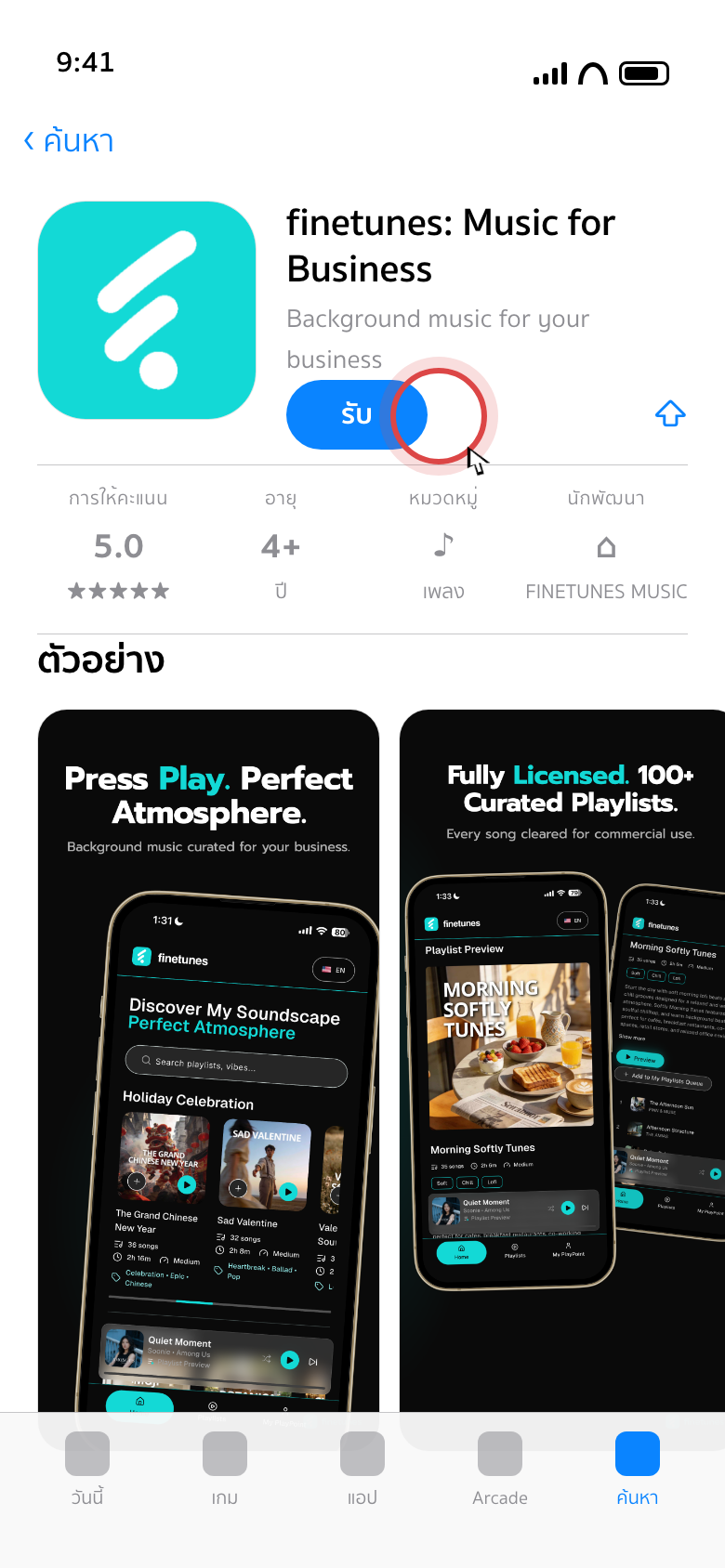
Either scan the QR code with the built-in Camera app, then tap the yellow Open in App Store banner at the top of the screen, or open the App Store, search for finetunes and pick finetunes: Music for Business.

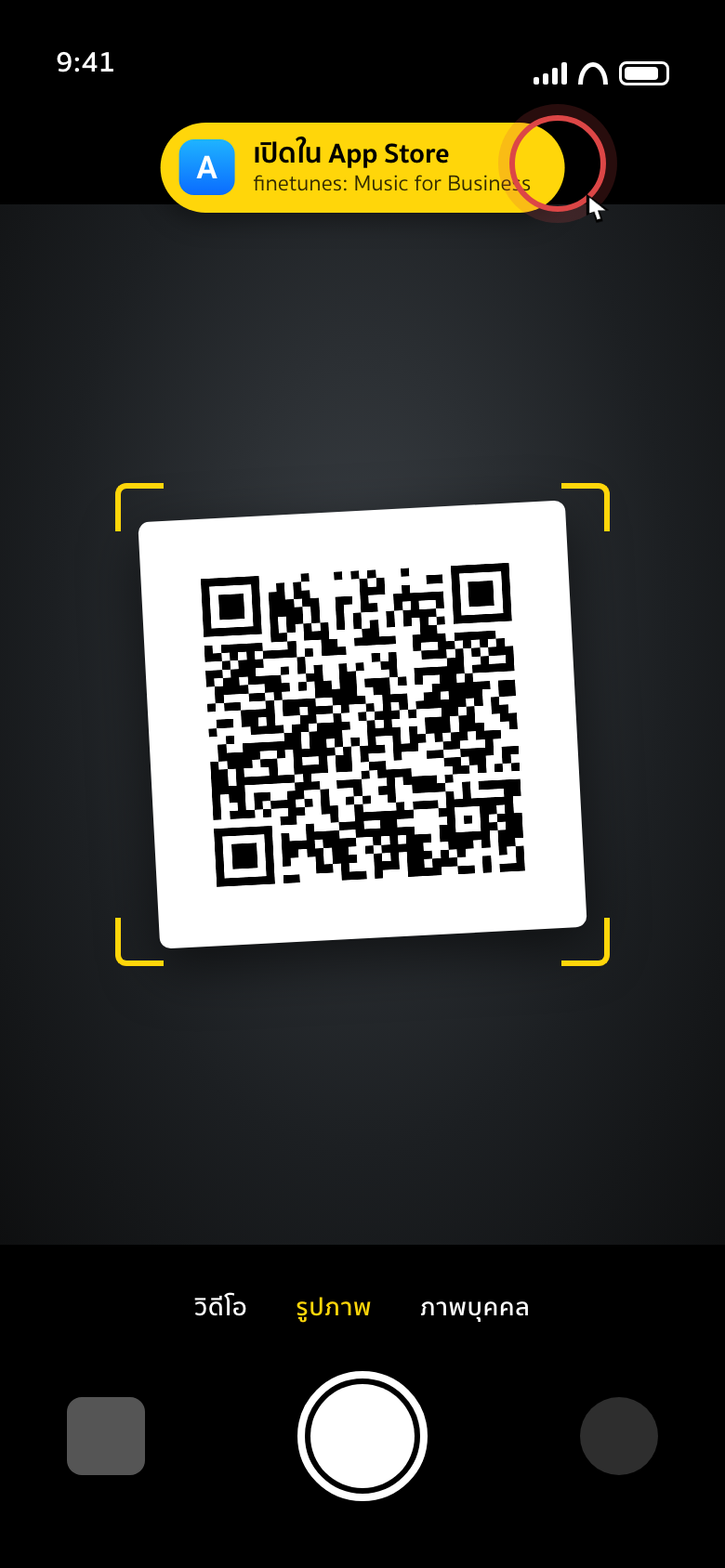
No QR app is needed. The iPhone camera reads QR codes on its own.
3. Install
- Tap Get.
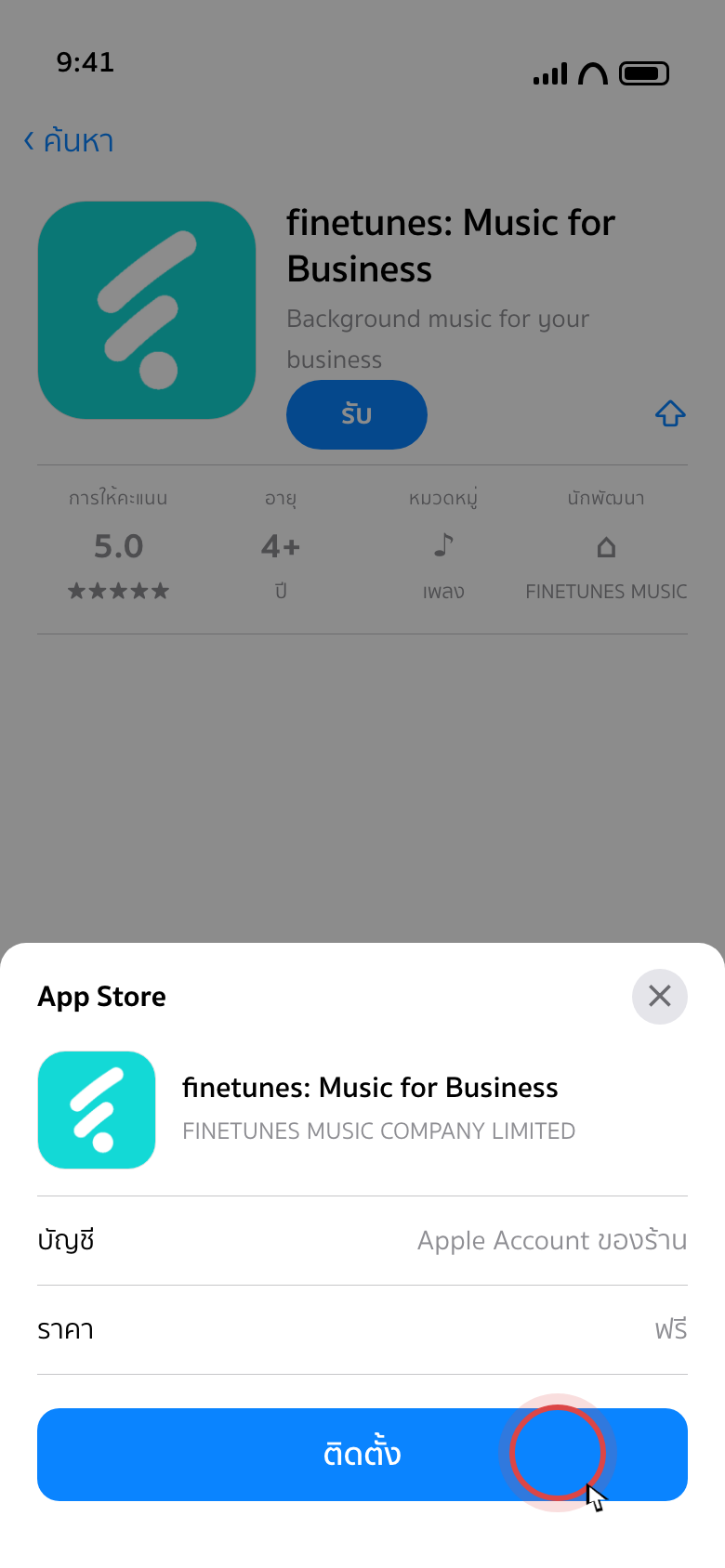
- Tap Install on the confirmation sheet. iOS may ask for Face ID, Touch ID or the Apple Account password.
- Wait for the progress ring to complete. Keep the screen on.
- When the button changes to Open, tap it.
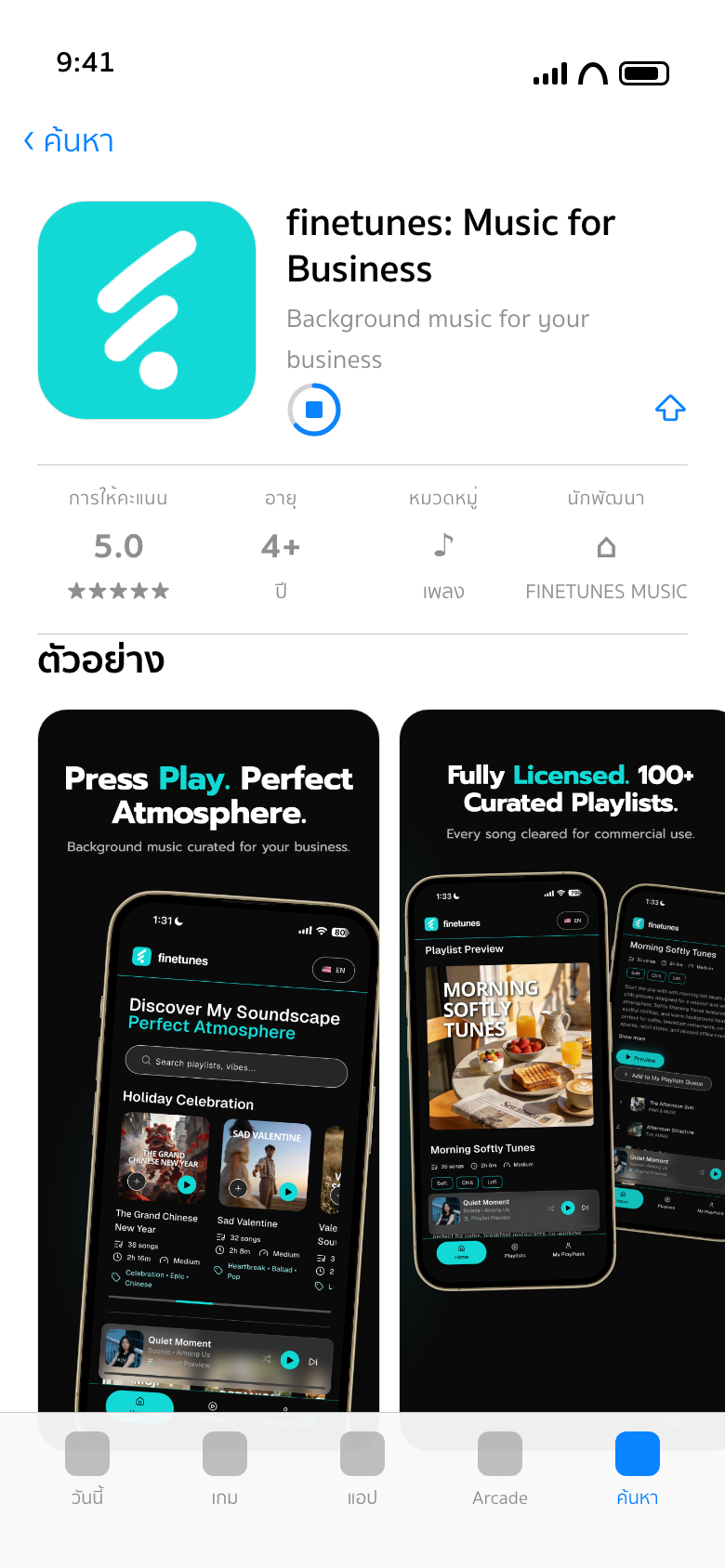
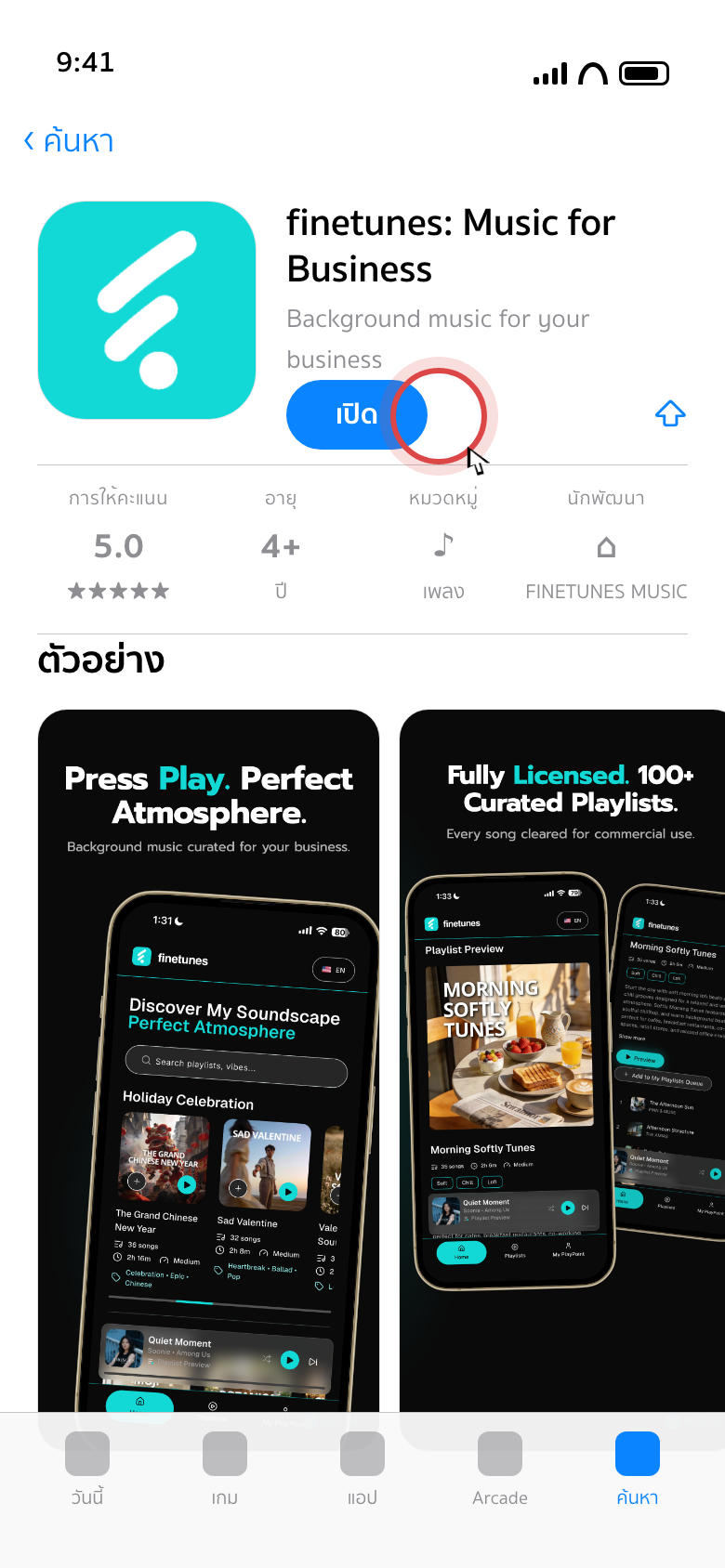
From now on the app is on the Home Screen as finetunes. If you can't find it, swipe down on the Home Screen and type finetunes.
4. Sign in
- Tap Sign in to an existing account.
- Enter the playpoint's email and password from the area manager. Watch upper and lower case; no spaces.
- Tap Sign in.
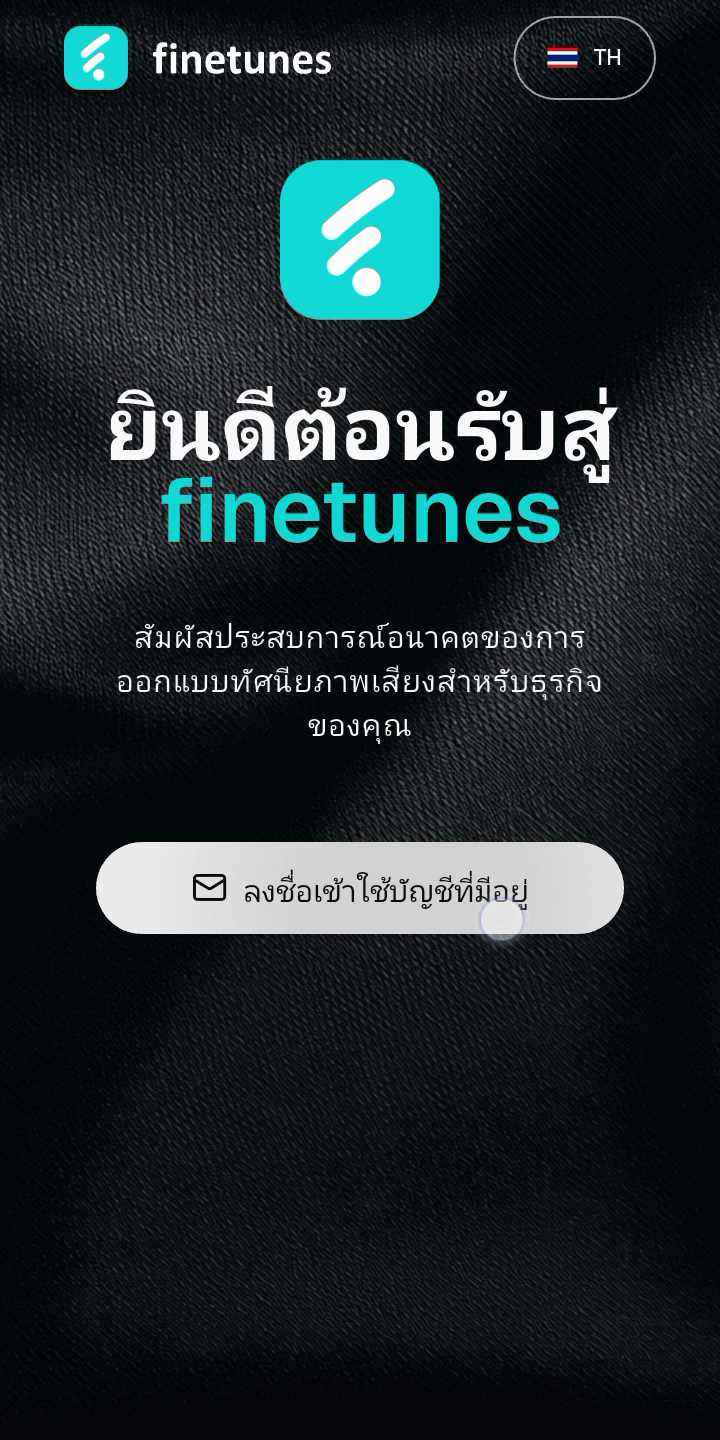
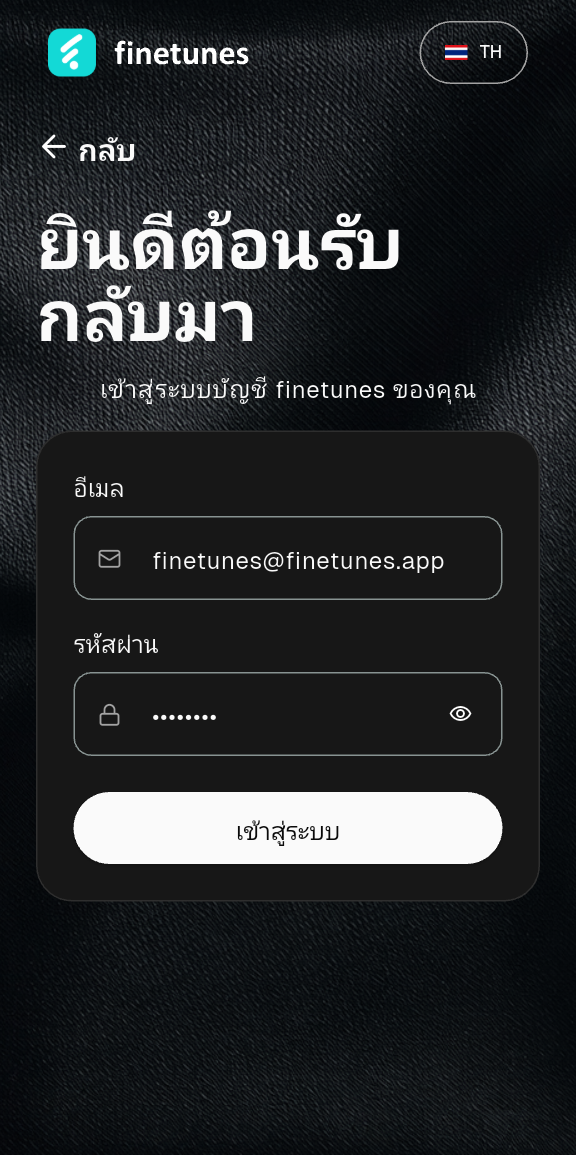
The device enters the mode HQ assigned to this account (Storefront for most playpoints). See the three account types.
5. Download playlists and press play
- In the Download playlists card, tap Download, then Download again on the size confirmation.
- Wait for Available offline. Don't close the app or drop the connection while it runs. This happens once; afterwards music plays even without internet.
- Tap Play all. Music through the venue speakers means you're done.
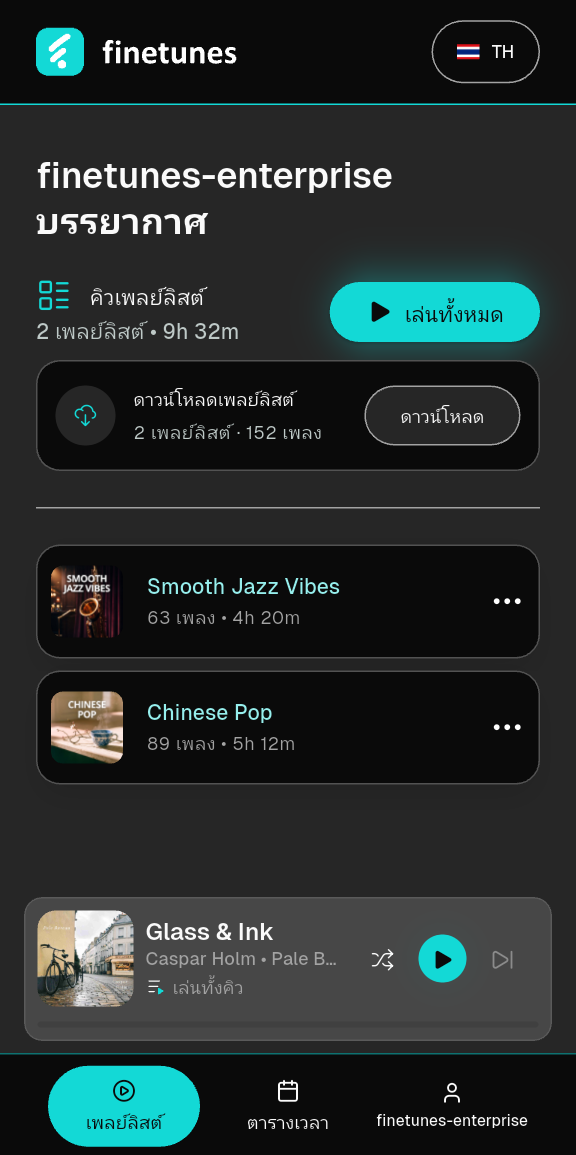
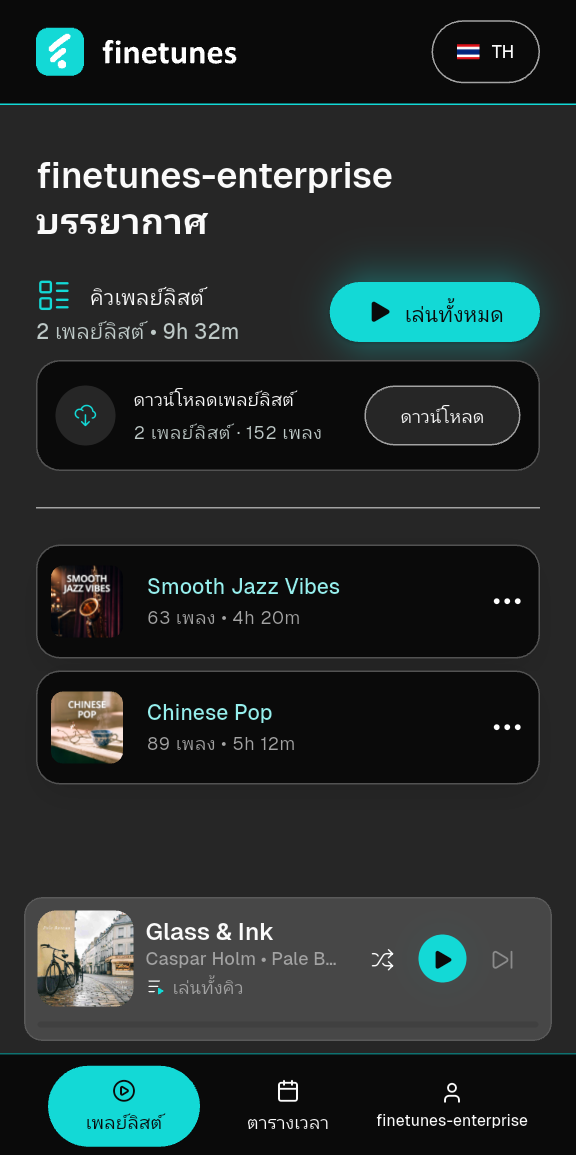
Check the Silent switch on the side of the iPhone and the volume buttons before anything else. Then the speaker cable. Full checklist: Playpoint staff one-pager.
Updating the app
Open the App Store, tap your profile picture top right, scroll to Available updates and tap Update next to finetunes. Login and downloaded playlists are kept.
Better: turn on Settings › App Store › App Updates so the device updates itself on Wi-Fi.
Troubleshooting
| Problem | Try |
|---|---|
| App Store asks for an Apple Account password | Use the venue's Apple Account. Ask the area manager if nobody knows it. The app is free. |
| QR code won't scan | Clean the lens, hold still, or search finetunes in the App Store instead. |
| "Not enough storage" | Delete unused photos, videos or apps, then install again. |
| Can't sign in | Check the email and password exactly. Still stuck: area manager. |
| Playlist download fails | Check the internet, tap Download again. |
| Playlist changed by itself | Normal. HQ schedules playlists by time of day. If the music is wrong for the hour, tell the area manager. |
| "Connect to the internet" message | The device has been offline for over 30 days. Connect once, reopen the app. No re-download needed. |