Playpoint staff at Enterprise venues. HQ can forward this page directly to staff.
Playpoint staff — press play
Your venue's music runs on finetunes Storefront mode. You don't pick playlists — HQ handles that. Your job is two things:
- Press play at start of shift.
- Get music going again if it stops.
That's the entire one-pager. Read it once, bookmark it, share with whoever opens the venue.
Start of shift
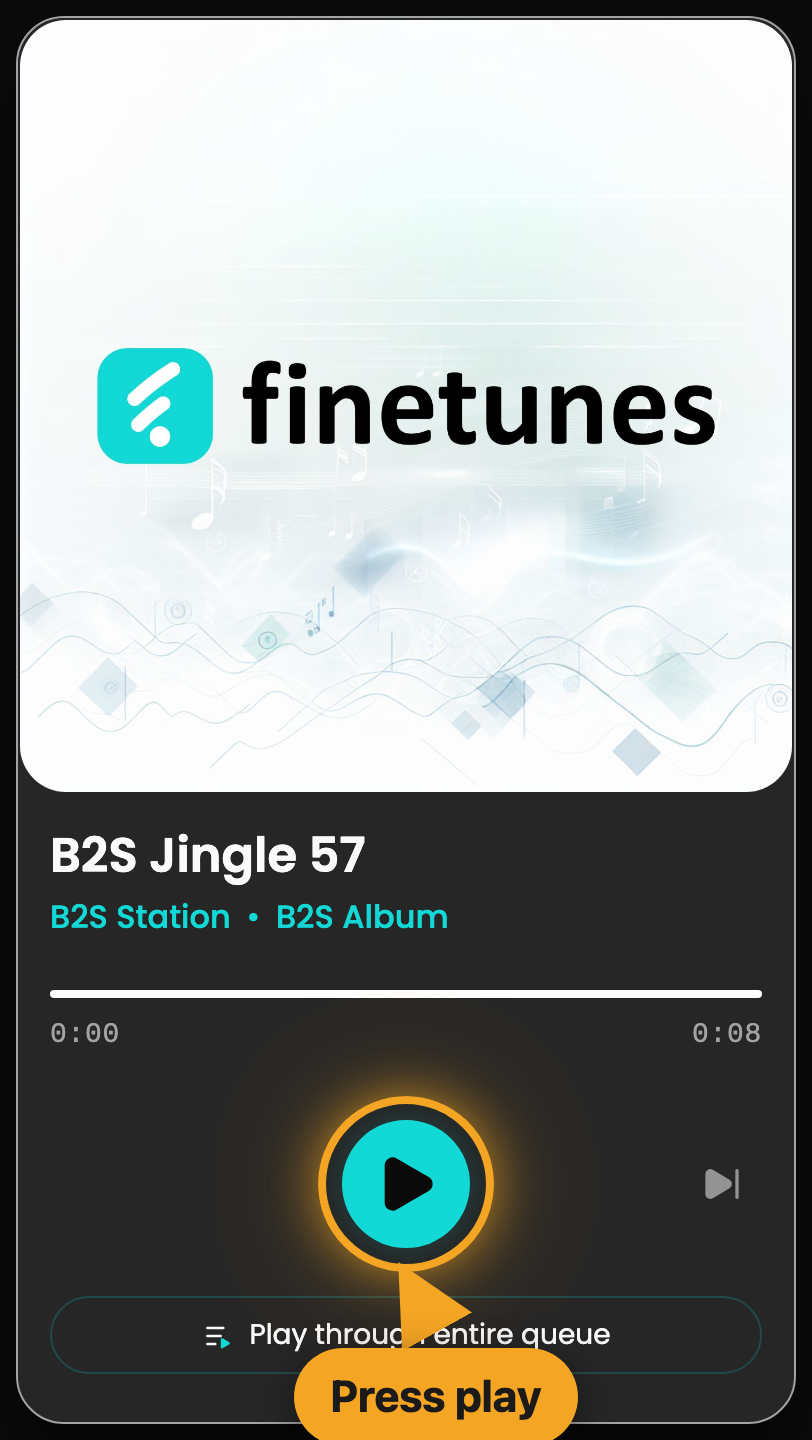
This is the player. Press the big play button.
- Open the finetunes player on your venue device (tablet, laptop, or whatever HQ set up).
- Confirm the playlist that's loaded matches what HQ assigned.
- Press play. Check that you can hear music through the venue speakers.
If you don't see a player, or the player asks you to log in, call HQ — don't try to log in yourself. Storefront mode keeps your playpoint device locked to the right account.
If the music stops
Run through these steps in order. Most stoppages clear at step 1 or 2.
- Check the speakers and volume. Speaker unplugged or muted? Volume dial down? This is the most common cause.
- Press play again. The browser sometimes pauses after the device sleeps or the network blips.
- Reload the page. Refresh the browser tab the player is in.
- Check the internet. If other browser tabs also stopped working, the venue's Wi-Fi is the problem — restart the router or call your provider.
- Call HQ if music still won't play after the four steps above.
That's almost always speakers or volume. Walk to the speakers. Check the cable, the power, and the system volume.
What you can't do in Storefront mode
Storefront mode is a playback-only player. By design, you can't:
- Change the playlist
- Change the music style or energy
- Skip too many tracks
- Log out, log in to a different account, or change account settings
If you need a different playlist for an event or a special hour, contact HQ — they can change it from the HQ Dashboard.
For the full picture of what Storefront mode does and doesn't allow, see Storefront mode →.
When in doubt
HQ first, then finetunes support.